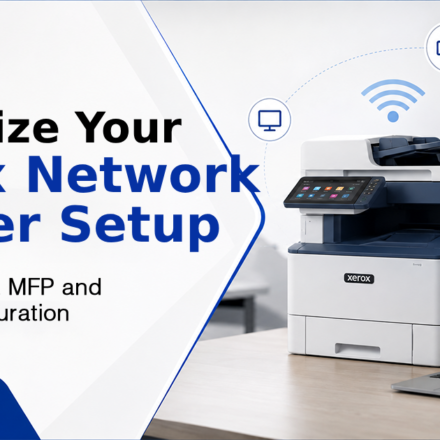









Today’s connected workplaces require printers that can accommodate many users, numerous operating systems and multiple document needs without interrupting production. A well designed Xerox network printer setup allows staff to print, scan and manage documents from several devices without interrupting the network traffic. It is crucial that the printer is set up properly to get reliable performance when it is used in a small office or huge company.
Setting up the multifunction features and selecting the right printer driver are just as vital as network connectivity. A fully configured Xerox MFP allows businesses to maximize the benefits of scanning, copying and document sharing capabilities. Likewise, the decision between the Xerox PCL driver setup and the Xerox PS driver setup is based on the sort of work done inside the company. With an understanding of these components, you may build a printing environment that supports both the day-to-day office setting and the specialist needs of printing.
Lay a solid foundation before installation
Preparation, not plugging in the hardware, is the first step in any successful printer deployment. Before you start the installation, make sure that your network infrastructure is working well and that you have enough IP addresses for the new device. The choice of the proper place for the printer is also useful for good network connectivity and easy availability to the customers.
Before you begin the installation procedure, it is equally crucial to verify program compatibility. Different versions of the driver may be needed for different operating systems, and network security regulations can interfere with the printer’s connectivity. Having these facts handy beforehand cuts down on unwanted disruptions and allows the Xerox network printer setup to run more smoothly from the very beginning.
Set Up Your Xerox MFP for Daily Productivity
Today’s multifunction printer has many more features than just printing. During a proper Xerox MFP setup, an administrator is able to customize copy defaults, scan destinations, user rights, energy saving features and document processing in accordance with the daily requirements of your company. These choices are used for standardizing the process of document handling within the company.
Once the first setup is complete, customers can use a variety of multifunction capabilities without having to constantly alter settings. Scan destinations, preferred paper sizes, duplex printing and finishing options can all be set to meet the needs of the business, with the most utilized options easily available. This level of preparation increases efficiencies and reduces manual repetitious tweaks.
Understanding Why PCL Printer Drivers Exist
Choosing the appropriate printer driver is a vital element of any installation. A typical environment for a Xerox PCL driver setup is one where the main requirement is rapid document printing. PCL drivers are commonly used by administrative offices, schools, and customer service departments to efficiently handle basic business documents such as invoices, letters, spreadsheets and reports.
Another benefit of PCL drivers is that they are compatible with a wide range of business applications. Once installed correctly, users can choose their print preferences such as duplex printing, paper trays, color selection, and print quality. With these configurations businesses can maintain consistent print standards while dealing with high volumes of daily printing.
Why certain organizations prefer PostScript drivers
Some companies require very accurate reproduction of visuals, typefaces and page layout. In these cases, it is often the recommended approach to Xerox PS driver setup. Graphic designers, architects, engineers and publishing professionals all utilize PostScript drivers widely because it preserves the formatting of documents when moving across different software systems.
To install the PS driver, select the appropriate driver package for the printer model and operating system. After installation users should print papers with photographs, distinctive fonts and detailed graphics and check the output. This testing helps to ensure the printer accurately reproduces complicated layouts and maintains document consistency.
Choosing the Right Driver for Different Departments
Not every department in an organization has the same printing needs. The administrative teams tend to place a high value on speed and efficiency, thus the Xerox PCL driver setups a great choice for handling big volumes of ordinary office documents. These drivers deliver reliable performance for routine business communication without putting undue strain on system resources.
Creative teams often have other priorities. Marketing departments, design studios and technical professionals would profit more from Xerox PS driver set up, where the appearance of the document is as vital as the speed of printing. Organizations can also install the most appropriate driver to different workstations, as they know the demands of individual users.
Network Optimization for Enhanced Performance
After the printer is installed, network optimization helps to guarantee dependable connection between users and the equipment. Static IP address assignment prevents the connection interruptions that can happen when network addresses change automatically. Standardized addressing makes it easier for computers, servers, and mobile devices to find printers.
Network administrators should also check firewall rules, printer sharing rights and bandwidth use to ensure reliable performance during busy periods. In larger organizations, looking at the network traffic can reveal bottlenecks that affect how fast you can print. These adjustments contribute to a more dependable Xerox network printer setup over the long term.
Making sure your printer keeps working properly
Printer setup should not finish installation. Firmware is updated quite often to improve the reliability of the device, improve security, and add in compatibility updates for newer operating systems. The other important measure to keep in mind is regular assessment of the printer drivers to ensure successful communication between the printers and the workstations.
Maintenance consists of monitoring toner levels, examining the paper feed system, internal parts cleaning when required, and multi-function testing. Administrators can run print and scan checks on a regular basis to discover problems before they cause a system to go down, keeping office productivity high.
Summary
Planning is the first step in a successful Xerox network printer installation, and correct configuration of multifunction features and printer drivers is the last. A successful Xerox MFP setup means printing, scanning and copying capabilities work in tandem to suit the everyday needs of users across the company.
Choosing the right Xerox PCL driver configuration for ordinary business documents or a Xerox PS driver configuration for graphics-heavy work allows organizations to get consistent results without sacrificing efficiency. When installed correctly and with the right drivers chosen, regular maintenance and continuous network management can help businesses create a reliable printing environment to support their existing operations and future development.