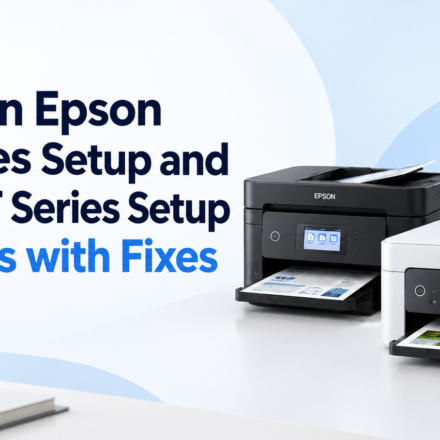






Installing an extra printer seems easy enough, but a lot of people have had their share of unexpected problems when trying to do so. Installing your Epson Workforce (WF) Series printer or your Epson EcoTank (ET) Series printer could turn out to be quite troublesome, thus slowing down your printing process and creating unnecessary stress for you.
This tutorial addresses the most common Epson WF Series setup and Epson ET Series setup challenges, and offers practical solutions to help you get your installation done right.
Printer Wi-Fi Connection Issues
Another common connection problem is the Wi-Fi connection. The printer may not be able to detect your Wi-Fi network during the installation process, or even if it detects the network, it cannot connect since the password is entered incorrectly.
Such a problem normally arises due to the following reasons; the printer being out of the reach of the router, entering the wrong wireless password, or the network being on an unsupported frequency. Note that most of the Epson printers can connect to 2.4 GHz Wi-Fi, meaning you might struggle connecting a 5 GHz Wi-Fi.
Some of the measures you can take include bringing the printer closer to the router, turning off the devices then restarting them, and ensuring that you enter the correct Wi-Fi password.
Error installing driver
Another common problem with Epson WF Series setup and Epson ET Series setup is driver installation incomplete or driver installation failed. Without the right driver, your computer can’t connect properly with the printer.
This is frequently caused by old drivers already on the system, antivirus software blocking the installation or selecting the wrong printer model.
Please delete any previously installed Epson printer drivers, reboot your computer and get the latest software for your precise printer model before reinstalling. Running the installer as an administrator may also assist to avoid permission related issues.
Printer not recognized by computer
Sometimes the installation software cannot detect the printer even if it is turned on.
If you are utilizing USB connection, make sure the cable is properly attached and working. Try another USB port if needed.
Wireless Installations Ensure that the printer and the computer are on the same Wi-Fi network. Most of the time a simple restart of both devices will renew the connection and allow the setup program to locate the printer correctly.
Printer Appears Offline
Many people complete the installation only to find the printer status is “Offline.”
This issue frequently happens due to printer settings, interrupted network communication or outdated printer drivers.
Go to your computer’s printer settings and uncheck ‘Use Printer Offline’. If needed, restart the Print Spooler service and configure the Epson printer as the default printing device. Updating the printer firmware could help fix connectivity problems.
Epson Smart Panel App Cannot Find the Printer
The majority of contemporary Epson printers ship with the Epson Smart Panel app, which makes it easy to install and control them. Sometimes the app can’t find the printer during setup.
Ensure that Bluetooth and location services are enabled on your smartphone, if applicable. You’ll need to connect to the same wireless network on both the mobile device and printer.
Many times, momentary connection issues can be fixed by closing and opening the app, or restarting your mobile device.
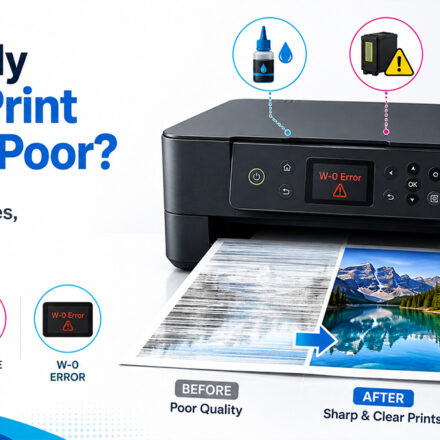
Print Quality Problems After Setup
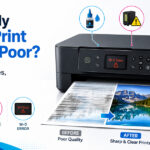
A successful installation does not ensure a satisfactory print quality. Sometimes users may experience washed out lettering, missing colors, streaks or fuzzy output after set up.
This often happens when the ink isn’t fully charged when you first do Epson ET Series setup. Dried printheads or alignment issues could be to blame on WF Series printers.
A nozzle check and then a printhead cleaning cycle will usually restore print quality. Performing printhead alignment results in crisper texts and photographs.
Paper Feeding Errors
Paper jams or paper feed difficulties may occur even during the first few print operations.
Common causes are incorrect paper loading, broken paper, or overloaded input trays. Place the stack of paper in the feeder, making sure the guides are snug against the paper, and use only the appropriate types of paper.
Removal of dust or small paper fragments from the paper path also increases feeding performance.
Firmware Update Issues
Some Epson printers need a firmware upgrade during the setup process. Sometimes the update may hang or not complete at all.
Do not power off the printer while it is updating. Keep the internet connection stable during the installation process.
If the update continues to fail, restart the printer and rejoin it to the network and then try installing the firmware again.
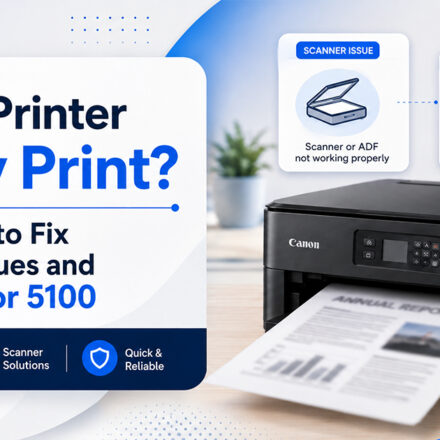
Scanner Not Working
Scanning is a feature available on many Epson WF and ET Series printers. Sometimes printing works well but scanning does not.
This usually means that only the print driver has been installed. For the printing and scanning to work correctly you need to install the whole software package from Epson.
Also make sure that the scanner is properly selected in your scanning application.
Tips for a Smooth Printer Setup
Most installation problems can be prevented by good preparation. Before you start the setup procedure, make sure your operating system is up to current, select the right printer model when installing, have a good internet connection, and keep the printer close to your wireless router.
Following the setup instructions provided by the manufacturer carefully will help you avoid making mistakes when you install it and will also help you finish the job much quicker.
Conclusion
Printer installation problems can be frustrating, but most Epson WF Series setup and Epson ET Series configuration problems are easily resolved. If you are facing Wi-Fi connection difficulties, driver errors, offline status, or print quality issues, systematic troubleshooting often solves the problem without the need for professional help.
By updating your printer software and applying the recommended updates, you can have reliable printing, scanning and wireless connectivity for both home and workplace. A proper setup will save your time and make sure that your Epson printer is performing consistently for many years to come.
Tech Support