






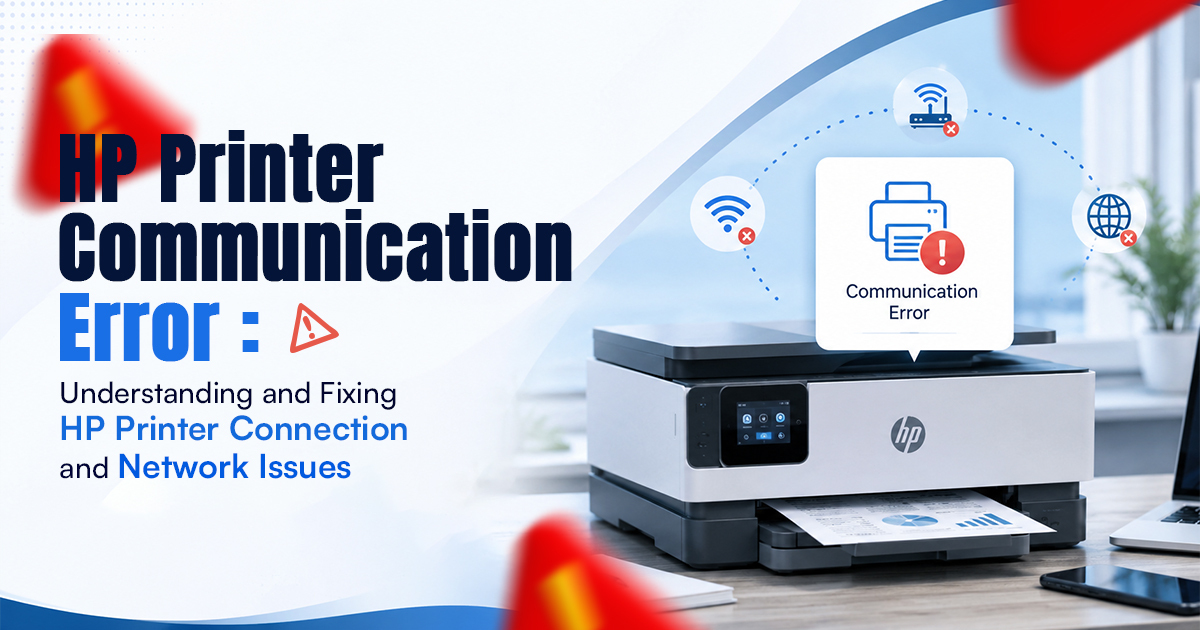

Houses and businesses prefer HP printers because they are reliable and easy to use. They are like any computer and can sometimes have technical problems that hinder printing. The printer and PC cannot communicate properly due to an HP printer communication error. One of the most typical issues. This problem is generally related to an HP printer or network issue.
Even if the printer has worked perfectly before, these errors can occur suddenly. Most connectivity issues can be fixed with simple troubleshooting. Users can get printing working again more quickly if they know what’s causing these problems.
What Is an HP Printer Communication Error?
The printer doesn’t get orders from the computer or phone that is connected. This is called an HP printer communication error. Both wireless and wired links might be interrupted. When connection fails, print jobs may get trapped in the queue or the system may display printer offline or unavailable alerts.
HP printer communication error might result from outdated drivers, network issues, incorrect settings, or hardware issues. It could be the router or computer handling the connectivity, not the printer. Understanding a problem’s origin is the first step to solving it.
Common Causes Behind HP Printer Connection Issues
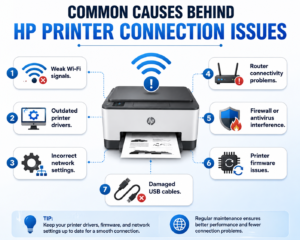
An HP printer connection issues can be caused by a number of things. The network signals for wireless printers need to be stable, while the cables and software for USB printers need to be set up correctly. Not being able to recognize the printer can happen because of even a small problem.
Many people give the following reasons:
- Weak Wi-Fi signals.
- Outdated printer drivers.
- Incorrect network settings.
- Router connectivity problems.
- Firewall or antivirus interference.
- Printer firmware issues.
- Damaged USB cables.
Knowing about these possible reasons helps the problem be found faster and more precisely.
Why HP Printer Network Issues Occur?
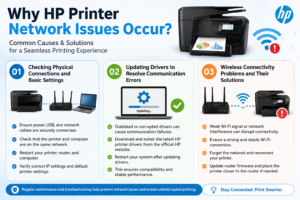
Because it’s easy and gives you more options, wireless printing is becoming more and more common. Still, it may complicate networking. If the printer and computer are on different networks or the Wi-Fi connectivity fails, an HP printer network connection error may occur.
Devices may not communicate when the network is busy. If other devices are using a lot of bandwidth, the printer may have problems connecting. Network printing issues might be exacerbated by router settings, password changes, or internet outages.
IP address difficulties might make it difficult for office workers to communicate and print on the same printer.
1. Checking Physical Connections and Basic Settings
Check the basics before moving on to more complicated troubleshooting. Make that the USB printer cord is securely connected to the computer and printer. HP printer connection issues can be resolved immediately by switching USB ports.
Make sure Wi-Fi devices are on the appropriate networks. Printers and computers commonly get disconnected when users connect computers to one network but leave the printer on another.
Restarting the printer and computer often jitters the link. Turning the router off and on again can fix network disturbances that impede printing.
2. Updating Drivers to Resolve Communication Errors
For HP printer communication errors, drivers that are out of date or broken are a major reason. In between the computer system and the printer, printer drivers do the talking. Problems with contact could happen if these drivers stop working with system updates.
The printer will function with new operating systems and software if the latest drivers are installed. Driver updates usually correct issues, speed up computers, and enhance security.
Updates to the software should also be checked by users, as old firmware can make connectivity issues happen again and again. Printers are more stable after firmware changes, and devices can still talk to each other easily.
3. Wireless Connectivity Problems and Their Solutions
A good network is important for wireless printing because it is so convenient. Signals can be faint or you may be far from the router, making joining difficult. If the network problem persists, moving the HP printer closer to the router may improve signal.
Reconnecting the printer to Wi-Fi is another nice idea. The printer can access the proper network settings because you must re-enter your wireless passwords. Sometimes a static IP address can stabilize the connectivity and prevent address conflicts.
Modern dual-band routers work on both 2.4 GHz and 5 GHz bands. Fixing wireless hp printer connection issues requires testing for compatibility because some HP printers only function with 2.4 GHz networks.
How Firewall and Antivirus Software Can Affect Printing?
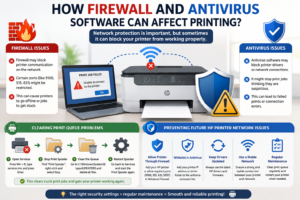
These programs protect computers, however they can sometimes interfere with printer-computer communication. Your firewall or antivirus software may accidentally interrupt printer-related processes, causing HP printer connection issues.
Cutting off protection software temporarily can help you diagnose the problem. Changing the firewall settings or adding printer applications to the trusted list may be the only permanent solution if printing works again.
Users should ensure that only known apps can access the system before changing security settings.
1. Clearing Print Queue Problems
Message mistakes are sometimes caused by print jobs that are still waiting to be sent, not by problems with the network. Damaged documents in the print queue may prevent new print instructions.
Clearing the print queue and restarting the printer spooler usually restores normal operation. After then, restarting the computer reconnects with the printer and resets the system.
Check the print queue often to avoid delays and communication errors.
2. Preventing Future HP Printer Network connection error
In order for a printer to work smoothly, preventative upkeep is very important. Trouble connecting can be greatly reduced by regularly updating software, keeping the Wi-Fi link strong, and restarting the printer every so often.
The Wi-Fi performance is also better if you put the printer somewhere where signals don’t get weak. Devices can talk to each other better if they stay away from networks that are too busy and reset their routers regularly.
Updating the firmware and cleaning the printer as part of regular care helps it last longer and avoid problems that come up out of the blue. Users can make their printing more reliable and efficient at home or at work by learning what causes HP printer network connection error and taking steps to fix them.
Tech Support